How to keep your phone screen awake while following a recipe
· Editorial team newsfromboston7.com
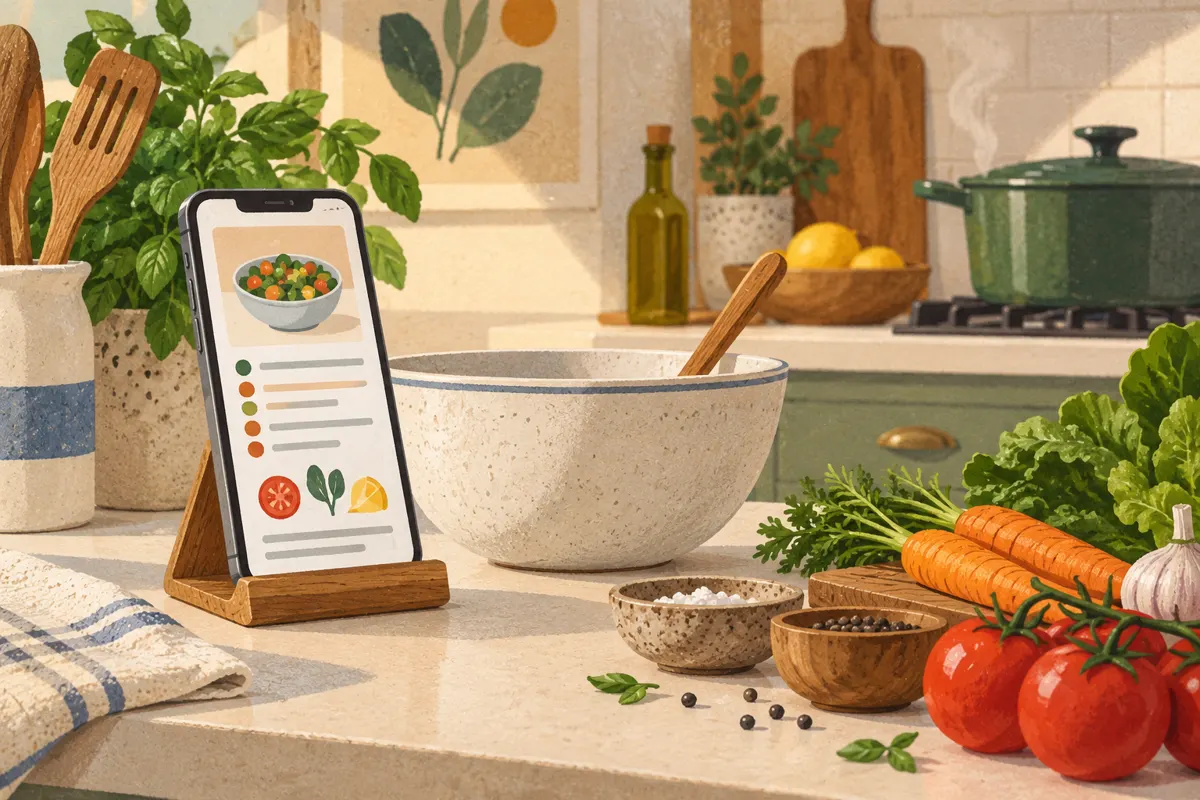
To keep your phone screen awake while following a recipe, turn on the recipe’s cook mode if it has one, or temporarily lengthen your phone’s screen timeout. On an iPhone, look for Auto-Lock; on Android, look for Screen timeout. Make the text large enough to read from the counter, then restore your usual timeout when you finish.
Try the recipe’s cook mode first
Check near the recipe title, ingredients or instructions for a control labeled Cook mode or Keep screen awake. This is a feature of the recipe website or app, rather than a universal cooking setting built into every phone. Some cook modes also enlarge the text and simplify the recipe display.
A compatible recipe page can ask the browser to keep the display awake while that page is active. Keep the recipe visible: switching to another app or leaving the page can interrupt this behavior. Battery-saving conditions may also prevent the screen from staying on.
- Open the recipe and find its cook-mode control.
- Turn it on before handling ingredients.
- Leave the recipe visible without touching the screen for longer than your usual timeout to check that it stays awake.
- If the screen still goes dark, use the phone’s timeout settings instead.
Change Auto-Lock on an iPhone
If your recipe has no working cook mode, adjust Auto-Lock temporarily. Note your original setting first so you can put it back afterward. A longer timed option may be enough for short preparation steps; Never is useful when you need the display continuously visible and the option is available.
- Open Settings.
- Go to Display & Brightness, then Auto-Lock.
- Choose a longer interval, or Never if available.
- Return to the recipe and position the phone where you can read it.
If Auto-Lock is unavailable or restricted, check whether Low Power Mode is enabled. A managed work phone may also have restrictions you cannot change. Avoid spending cooking time troubleshooting a locked setting: use the available interval or another readable copy of the recipe.
Extend Screen timeout on Android
Android menu names vary by phone manufacturer. The setting is often under Display and may be called Screen timeout or Sleep. Searching within Settings is usually the quickest way to find it.
- Open Settings and search for Screen timeout or Sleep.
- Record the current interval.
- Select a longer available interval.
- Reopen the recipe and check whether the display stays visible long enough for your preparation steps.
Some phones offer only timed choices, with no Never option. Use the longest suitable interval and remember that the display can still turn off during a lengthy task. If that keeps interrupting you, try a recipe page or app with a working keep-screen-awake feature.
Make the recipe easy to read at a glance
Keeping the display lit helps most when you can read the next instruction without picking up the phone. Suggested setup: place it on a stable stand, enlarge the recipe text and adjust its angle before you begin.
- Use the recipe’s text-size control if it has one, or try browser zoom.
- Choose a brightness level that makes the words clear in your kitchen lighting.
- Keep ingredient amounts and the current instruction visible together when the layout allows.
- Position the phone away from splashes, steam, hot cookware and the edge of the counter.
- Clean and dry your hands before touching the screen.
If enlarged text makes the page awkward to navigate, reduce the zoom slightly. The aim is a readable instruction with enough surrounding context to keep your place.
Restore your usual settings after cooking
An illuminated display uses battery, and disabling automatic locking can leave your phone accessible when you put it down. Make resetting the phone part of clearing the counter.
- Turn off cook mode or close the recipe page.
- If you changed Auto-Lock or Screen timeout, restore the interval you recorded.
- Return brightness to your preferred everyday level.
- Press the phone’s lock button before setting it aside.